
Creating a Temporary Email Address: The Quick Method
You're staring at a signup form. It wants your email before it'll hand over the download, the trial, the discount code — whatever you came for. You don't want to give it your real address, and you definitely don't want to spend ten minutes setting something up. You want a working email address right now, not after a tutorial.
Here's the good news: with Mailss, the whole thing genuinely takes under a minute. This is the quick method — the stripped-down, no-thinking version, designed for moments when a download timer is ticking or a trial page is waiting. If you want the full walkthrough with every option explained, that's a different article. This one is for when you're in a hurry.
The 30-second method
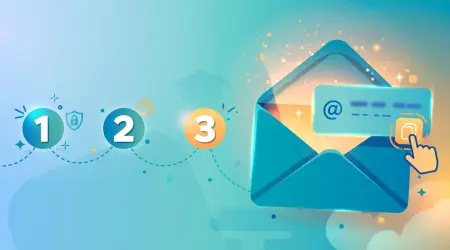
Open mailss.online. That's step one, and it's basically the whole trick — the moment the homepage loads, there's already a randomly generated email address sitting in the field at the top of the page. No button to press, no form to fill, no "create account" detour. The address is just there, waiting.
Click the Copy button next to the address field. The full address lands on your clipboard in one click. Don't try to select it manually and retype it — email addresses are unforgiving, and one wrong character means the verification email goes nowhere.
Switch to the signup form that's been waiting for you. Paste the address into the email field, fill out the rest of the form normally, and submit.
Now switch back to your Mailss tab. Your inbox is right below the address field on the same page, and it updates on its own — no waiting around, though a Refresh button is there if you want to check manually. Messages usually show up within seconds, though it's worth giving it a full minute or two before worrying. Click the email, grab your verification code or link, and you're done.
That's it. Four actions: open, copy, paste, read. First-timers often wait for a catch — a signup wall, a "free trial" upsell, a captcha gauntlet. There isn't one.
What not to waste time on
When you're in a hurry, skip the decisions that don't matter yet:
- Don't deliberate. Take the generated address and go — if speed is the priority, there's nothing to configure. You can always explore the extras later — favorites, the QR code, the Change dialog options.
- Don't look for settings. There are none to configure. No dashboard, no preferences page, no notification toggles. The product is one page: address field, Copy button, Change button, inbox.
- Don't create anything. No account, no password, no username to remember. If you catch yourself looking for a "sign up" button on Mailss itself, stop — you've misunderstood the assignment, and that's the point.
You can always come back later and explore the extras — favorites, the QR code, the Change dialog. The quick method is about getting past the gate that's in front of you right now.
Speed tips from experienced users
Keep the Mailss tab open. This is the single biggest time-saver. Open mailss.online in a tab before you start the signup elsewhere, and leave it sitting there. When the verification email arrives, you just switch tabs instead of navigating back, waiting for the page to load, and generating a new address by accident.
Use the Copy button, not your mouse. Dragging across the address field to select it manually is slower and error-prone — this is the most common fumble for new users. One click on Copy, done.
On mobile, same deal. The whole thing works in your phone's browser — open the site, tap Copy, switch to the app or mobile site you're signing up for, paste. No app to install, which matters because temp addresses on mobile are usually needed immediately, not after a download.
Paste carefully on the signup form. After pasting, glance at the field to make sure the full address landed — some forms trim pasted text or add a stray space. A quick visual check takes one second and saves you from the "we sent the code, check your inbox" loop when the code went to a mangled address.
When the quick method is enough — and when it isn't
The quick method covers the large majority of real-world situations: newsletter signups, free trials, gated downloads, forum registrations, one-off verification codes, Wi-Fi login pages, contest entries. If the relationship with the site ends after today, the 30-second method is all you need.
Take an extra minute when the situation has a wrinkle:
- The site rejects the address. Some sites block disposable domains outright ("temporary emails not allowed"). Hit the Change button on Mailss for a brand-new address and try again — a different address sometimes gets through. If it still fails, that's the site's policy, and no temp mail service will fix it.
- You need the inbox on your phone too. Scan the QR code on the Mailss homepage and the same inbox opens on your mobile browser. Useful when the signup is on your phone but you'd rather read the email on a bigger screen, or vice versa.
- The message contains something you need to keep. Use the favorites feature to save it before you rotate the address. Once you hit Change, the old inbox is gone.
If the email doesn't arrive
First, don't panic at the 30-second mark. Give it a full two to three minutes — some senders are genuinely slow, and staring at the inbox doesn't make them faster.
Then check, in order: did you paste the right address (compare it character by character with the Mailss field)? Did the site actually send anything yet (some flows need an extra step, like clicking "resend")? Does the site block disposable addresses? If everything checks out and there's still nothing, hit Change for a fresh address and run the signup again. A second attempt with a new address resolves the issue the large majority of the time.
Understanding the address you're given
The address Mailss generates looks like any other email address — a random string of characters, an @ sign, and the service's domain. There's nothing visibly "temporary" about it, which is exactly the point. You paste it into a signup form the same way you'd paste your Gmail address, and the form treats it the same way. In practice, the default address works fine for the large majority of signups. Don't overthink it on your first use — the inbox is the product.
One address per signup: the habit that makes this actually work
Here's the thing most people miss, and it's the difference between temp mail that protects you and temp mail that's just theater: use a fresh address for each signup.
It takes one click on the Change button. The reason it matters: if you use the same temporary address for five different sites, you've recreated the exact problem you were trying to avoid — one address linked to five databases. When one of those databases leaks or gets sold, the unwanted mail still finds you. Five separate addresses means five separate blast radiuses, each of which you can abandon independently.
A practical routine for a batch of signups looks like this: open Mailss, copy address one, complete signup one, hit Change, copy address two, complete signup two, hit Change — and so on. It adds maybe five seconds per signup. The old addresses and their inboxes fall away behind you. That rotation is the entire value proposition; a single temp address that you keep forever is barely better than a real one.
One thing the quick method doesn't cover
Speed is great, but don't let it make you careless about which signups get a temp address. The rule: if losing access to the address would cause a real problem, it gets your real email. Banking, password recovery, two-factor authentication, orders with refunds, accounts you plan to keep — none of those ever touch a temporary address. Temp mail is for the disposable stuff: signups easily forgotten tomorrow. The quick method gets you the address fast; your judgment decides where it goes.
FAQs
Do I need to install anything to create a temp email fast?
No. Mailss runs entirely in the browser on desktop and mobile. Open the site, copy the address, done. There's no app, no extension, and no download standing between you and a working inbox.
Is the quick method really free?
Yes. Generating the address, receiving mail, and rotating to a new address are all free with no account. There's no trial period and no paywall that appears after a few uses.
How long does the address last?
Addresses are ephemeral: they live during the active browser session and are permanently deleted when you close the window, delete the address, or the session ends. There is no published minute-by-minute countdown — the design assumes the address only needs to last as long as the signup at hand. For a quick signup and verification, that's more than enough. Don't use one for anything you'll need to revisit weeks later.
Can I create more than one address?
As many as you need. Hit the Change button any time for a fresh address — handy when you're signing up for several things in one session and want each one isolated.
What if I need the same inbox on my phone?
Scan the QR code on the Mailss homepage with your phone. The same inbox opens in your mobile browser, so you can read verification emails wherever you are.